Django is a trendy Python-based framework for web applications. Its ever-growing popularity owes to availability of quick development tools, inbuilt administrative interface and high operation speed. Unfortunately, until now there was no easy tried-and-true way to deploy and run Django-apps on Microsoft IIS web-servers. Here we introduce Helicon Zoo – a solution to run popular web-frameworks and applications with Microsoft IIS. It bases on Microsoft Web Platform Installer (WebPI) technology to deploy apps. WebPI also handles different dependencies and takes care of installation of necessary components, such as Python, IIS, various database drivers and modules. And, of course, Helicon Zoo itself which sticks it all to Microsoft IIS 7+.
Development environment configuration
Web development process implies use of two relatively independent environments – development and production. Helicon Zoo may be used in production as well as on developer’s machine, or in both places. In either case the sequence of actions might be:
To start, you need to download Web Platform Installer from Microsoft website (http://www.microsoft.com/web/downloads/platform.aspx) and install it. WebPI already includes wide range of frameworks and applications for IIS like PHP, ASP.NET, WordPress, Drupal, phpBB. To launch Helicon Zoo add new feed to WebPI:
Run WebPI and click Options. In Custom Feeds box put http://www.helicontech.com/zoo/feed.xml and click Add feed:
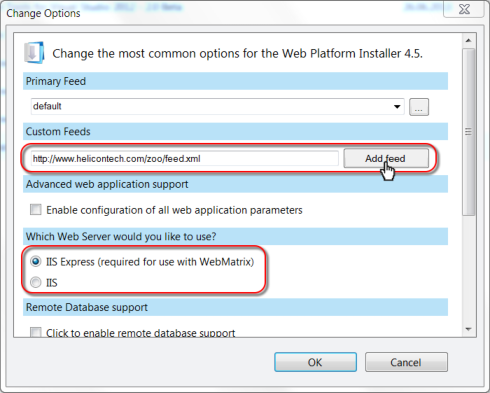
Please note web server choice – IIS Express or IIS. The main difference is that IIS Express runs as interactive user application which usually means Administrative permissions if you are logged in as Administrator. This simplify development process and decrease number of possible issues you may encounter with insufficient NTFS permissions to run application. With IIS web applications are executed as a restricted user and may require additional permissions tuning, but you will get environment that is more close to those which will be used to run application in production. In this article we will be using IIS Express with WebMatrix as a development environment and IIS for production.
After adding custom feed new Zoo tab will appear with Applications, Templates, Packages, Modules and Engines sections in it.
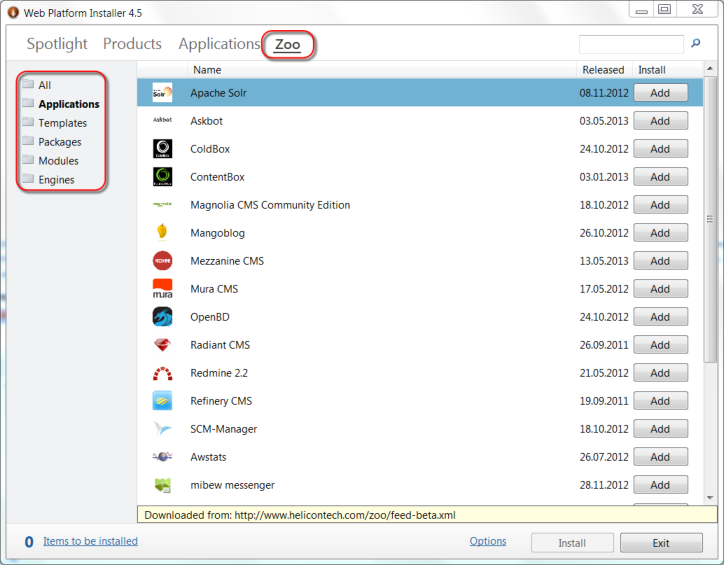
- Applications – are some ready to use web applications that are included into Helicon Zoo feed, that come with all required dependencies and can be installed on a clean system in a few clicks. You can use this section if you simply need to install one of these applications on your server.
- Templates section contain empty projects for each web application technology that is currently supported by Helicon Zoo. You use these templates as a starting point to develop application of particular technology or to host existing application. For example in this article we are going to use Python project template.
- Packages include complete Hosting Packages for each web application technology that is supported by Zoo. You install one or more hosting package from this section to enable hosting of the whole technology class on the server. Each package contains all dependencies that may be needed. For example Python Hosting Package contain Python 2.7, Virtualenv, Pip, Flup, Python Imaging Library, MySQL Driver for Python 2.7, Twisted, Helicon Zoo Module and some other modules that may be needed and that have to be installed globally. We will be installing Python Hosting Package to configure production environment later.
- Modules contains some useful applications and modules that are usually installed on server globally, like Helicon Ape, MongoDB, PostgreSQL, RabbitMQ, etc. Some of these modules are not intended to be installed separately from Hosting Packages.
- Engines section contains engines itself, like Ruby, Python, Perl. Please note that installing these engines will not generally enable them in IIS environment. You should not install these engines manually, please use corresponding Hosting Package or Template instead.
Creating Django application
The best thing about Helicon Zoo and Web Platform Installer is that creating new application and installing application environment is all done in one step because WebPI will check and install all needed dependencies automatically. Please go to Zoo –> Templates, choose Python project and install it.
![image[5]](https://www.helicontech.com/articles/wp-content/uploads/2013/09/image5.png "image[5]")
Depending on the server chosen (IIS or IIS Express) and your system configuration many components may be downloaded and installed first time.
Warning: If you have already manually configured Python environment, please use packages that come with Helicon Zoo through the feed and Web Platform Installer instead. Even though it is possible in theory to use your custom Python installation with Helicon Zoo, we highly recommend to use packages from Zoo feed. If you ignore this requirement, troubleshooting your installation may be complicated.
If you have chosen IIS Express as a web server, after installation is finished WebMatrix will open automatically and you should see project’s index page with further instructions after short deployment process. With IIS installations additional step is required where you choose port and host name bindings, a folder on disk where to put web site, etc. IIS Express web sites are created in \Documents\My Web Sites\. During the deployment process special script, that will be explained later, creates a new Python virtualenv inside the folder of web site. This virtualenv should be used for all further installations of modules and components and Helicon Zoo will start application using this virtualenv instead of global Python settings.
![image[11]](https://www.helicontech.com/articles/wp-content/uploads/2013/09/image11.png "image[11]")
Initial project content is rather simple:
![image[17]](https://www.helicontech.com/articles/wp-content/uploads/2013/09/image17.png "image[17]")
An empty console folder that is simple placeholder if you wish to configure authentication for web console access later; static folder should be used to store static files (including Zoo welcome page); venv folder contains Python virtualenv; deploy_done.rb file will be explained later; requirements.txt file will contain project dependencies and web.config file that is essential to configure Zoo application in this folder. The virtualenv configured in this folder is a normal Python vritualenv, with the only difference that Zoo will not call python.exe file from this folder by default. With typical settings Zoo Python 2.7 engine will call python.exe file from the Python installation folder (i.e. C:\Python27), configuring all other variables to point to the virtualenv inside web site folder.
The instruction on Welcome page asks us to click on a link and start Web console, but we will learn one more tool before – Helicon Zoo Manager. Go to Start menu, Helicon –> Zoo –> Helicon Zoo Manager (either for IIS or IIS Express depending on the server type you are using). This manager lists all your current web sites and here you can modify configuration of Helicon Zoo Module, enable or disable engines, set environment variables, start Web Console or IDE, etc. By default Helicon Zoo will run Python application using Python 2.7 WSGI engine and you can change this using Helicon Zoo Manager. So, let’s click Start web console button to launch console for this application:
![image[35]](https://www.helicontech.com/articles/wp-content/uploads/2013/09/image35.png "image[35]")
Then type the following command to download and install Django into the virtualenv folder:
pip install django
![image[23]](https://www.helicontech.com/articles/wp-content/uploads/2013/09/image23.png "image[23]")
You may ask why using this web console if I can just run cmd.exe or any other IDE to run commands? The answer is because Helicon Zoo web console is designed to run commands in the isolated environment of your application, so all these commands are applied to the application you are working with, using local folders and environment variables and executed by the same interpreter and same IIS Application pool user that runs the application itself. This is needed to keep applications portable because all modules and components are installed into the application folder and execution environment is easily replicable by installing Helicon Zoo Hosting Packages on other machines. On the other hand if you launch Windows console from start menu you may actually have number of environments and interpreters installed on your machine, like several different versions of Python. With Windows console when you run a command you can’t tell for sure what exact version of interpreter you are calling, where it is located, where will it store it’s settings, etc. IDEs and commands to install modules will usually install them globally into the system, so your application will lose portability. There could be conflicts between different versions of engines or modules installed in the system when you run global command line interface. This is why it is always recommended to install web application engines like Python or Ruby distributions using Helicon Zoo repository, for example by installing Hosting Packages, instead of downloading and installing engines manually. And use of Helicon Zoo web console or launching IDE from Helicon Zoo Manager may also be essential if you want to avoid version conflicts and retain application portability.
This web console executed by Zoo Module as HTTP application in your browser. Anonymous remote requests to console are prohibited by Zoo engine for security reasons. So if you wish to access console on a remote server you will have to enable one of the authentication methods for the console folder (or whatever location you have configured as a console). Or you can use Windows IIS Manager to connect to remote server and start console from Helicon Zoo IIS Manager snap-in. The Helicon Zoo Manager installs snap-in for Internet Information Services Manager, which you can use even in remote mode, when IIS Manager is connected to a remote server.
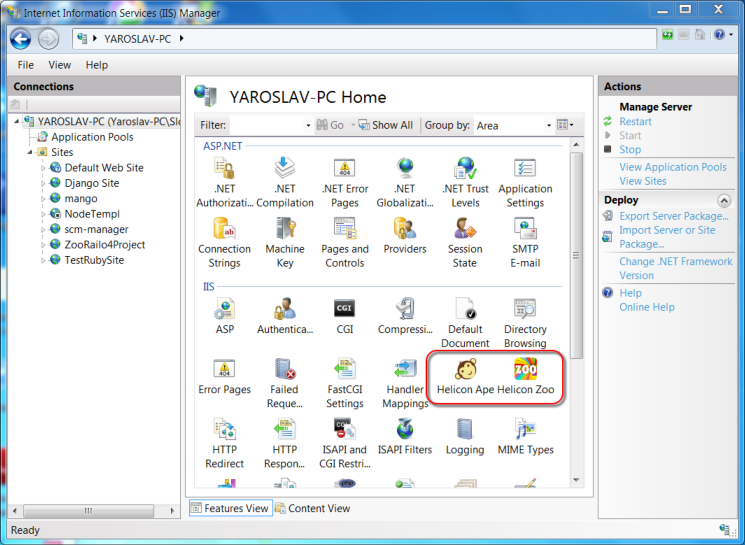
The one-time hash code will be used to authenticate console session and will be invalidated every time when you close the console window. The ability to start web console can be enabled or disabled globally and for individual applications using Helicon Manager, which is useful for hosters. Please read more about web console here.
After Django installation is finished type the following command in console to create an empty Django project named ‘project’:
django-admin.py startproject project
Then as per instruction add the following environment variable using Helicon Zoo Manager: DJANGO_SETTINGS_MODULE=project.settings
![image[47]](https://www.helicontech.com/articles/wp-content/uploads/2013/09/image47.png "image[47]")
Now, if you refresh web site default page you should see Django project welcome page:
![image[41]](https://www.helicontech.com/articles/wp-content/uploads/2013/09/image41.png "image[41]")
Integrated Development Environment
Another useful feature of Helicon Zoo Manager is the ability to start IDE for the application environment. This is not just a shortcut to your favorite IDE. Before launching IDE, Zoo Manager will configure environment according to the environment variables of the selected application. Most current IDEs can read these environment variables to configure locations correctly. Locations like virtualenv folder, working directories, Path variable with correct locations of Python interpreter of required version, etc. Open Helicon Zoo Manager and click on Start IDE. When you do this first time for the application a small Select IDE dialog will appear. By default it opens Windows Command Line (cmd.exe) and this is a convenient replacement for the Web Console we’ve used in previous chapter and if you develop application locally. This command line interface will be launched with all path configured for your application, therefore ‘pip install’ command will install modules into the application folder same as with web console. The difference with web console is here cmd.exe is executed as interactively logged on user, while web console is executed as IIS application pool user, which may differ in permissions significantly. So for development purposes and on local machine using Start IDE command is even more convenient than the web console.
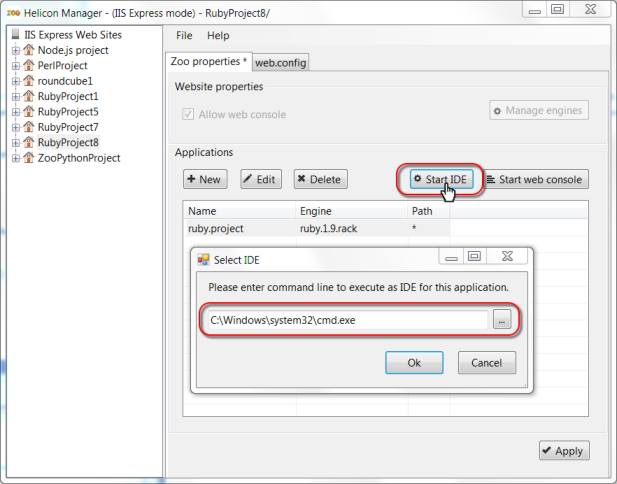
But instead of using ascetic command line you can configure your favorite IDE to start with this command. Environment variables will be configured before launching application and IDE will know correct locations of files, like GEM_HOME, location of Ruby interpreter, etc.
Below please find list of popular Python IDE’s that run on Windows:
- Pydev (freeware);
- Python Tools for Visual Studio (freeware, requires Visual Studio);
- PyCharm (commercial);
- Komodo (commercial);
- Wingware (commercial).
Installing native modules
Besides modules written on Python, there are some modules that needs to be compiled during installation procedure. These are so-called native modules. Normally compilation process is automatic and requires only presence of C++ compiler in the system. No write access to system folders required as compiler will save all output files into the module installation directory. The tricky thing here is the version of C++ compiler should be the same as version of the compiler used to build Python distribution itself. Python 2.7 package that is currently provided with Helicon Zoo has been built using Microsoft Visual Studio 2008 (v. 9.0). So to provide support for native modules installations you only need to install this version of Visual Studio in the system. There is a freeware version of this studio available from Microsoft which you can download here: Visual Studio 2008 Express.
After installation you need to restart Windows so the Python starts using this compiler to build native modules. If you have several versions of C++ compiler installed in the system, sometimes it is necessary to specify the exact version that will be used by Python. For this purpose you can set the following environment variable. Simply add it to the Python engines using Helicon Zoo Manager:
VS90COMNTOOLS=C:\Program Files (x86)\Microsoft Visual Studio 9.0\Common7\Tools\
Developing an application
Now, let’s create a simple Django application as a concept proof. For a convenience on development machine I suggest you to set up file changes watch mask. Since Python engine does not reload modified files automatically, this will restart Python every time when any *.py file is modified in web site folder. Please add the following environment variable to web application: WATCH_FILE_CHANGES_MASK=*.py
We will follow Tutorial #1 from Django documentation. We’ll skip chapters explaining Python server configuration as we already have it running and go to Database setup chapter. We are going to use SQLite3 as a test database. So, open project\project\settings.py file in the web site folder and modify DATABASES section as follows:
DATABASES = {
    'default': {
        'ENGINE': 'django.db.backends.sqlite3', # Add 'postgresql_psycopg2', 'mysql', 'sqlite3' or 'oracle'.
        'NAME': 'DEV_DB.sqlite3',              # Or path to database file if using sqlite3.
        # The following settings are not used with sqlite3:
        'USER': '',
        'PASSWORD': '',
        'HOST': '',                      # Empty for localhost through domain sockets or '127.0.0.1' for localhost through TCP.
        'PORT': '',                      # Set to empty string for default.
    }
}
Then start IDE or cmd.exe using Helicon Zoo Manager. We will need a command line interface. First move to the ‘project’ folder:
cd project
Run sincdb command to create database structures:
python manage.py syncdb
And create ‘polls’ application inside the project:
python manage.py startapp polls
Modify project\polls\models.py as follows:
from django.db import models

class Poll(models.Model):
    question = models.CharField(max_length=200)
    pub_date = models.DateTimeField('date published')

class Choice(models.Model):
    poll = models.ForeignKey(Poll)
    choice_text = models.CharField(max_length=200)
    votes = models.IntegerField(default=0)
Edit project\project\settings.py again and add ‘polls’ to INSTALLED_APPS section:
INSTALLED_APPS = (
    'django.contrib.admin',
    'django.contrib.auth',
    'django.contrib.contenttypes',
    'django.contrib.sessions',
    'django.contrib.messages',
    'django.contrib.staticfiles',
    'polls',
)
And run syncdb again:
python manage.py syncdb
Edit polls\views.py:
from django.http import HttpResponse

def index(request):
    return HttpResponse("Hello, world. You're at the poll index.")
Add URL route by creating file polls\urls.py with following content:
from django.conf.urls import patterns, url

from polls import views

urlpatterns = patterns('',
    url(r'^$', views.index, name='index')
)
Now let’s connect this route to the main urls.py by editing project\urls.py as follows:
from django.conf.urls import patterns, include, url

# Uncomment the next two lines to enable the admin:
# from django.contrib import admin
# admin.autodiscover()

urlpatterns = patterns('',
    # Examples:
    # url(r'^$', 'project.views.home', name='home'),
    # url(r'^project/', include('project.foo.urls')),

    # Uncomment the admin/doc line below to enable admin documentation:
    # url(r'^admin/doc/', include('django.contrib.admindocs.urls')),

    # Uncomment the next line to enable the admin:
    # url(r'^admin/', include(admin.site.urls)),
   url(r'^/?', include('polls.urls')),
   )
Now start browser with application’s home page. You should see the “Hello world” response of our application:
![image[59]](https://www.helicontech.com/articles/wp-content/uploads/2013/09/image59.png "image[59]")
We will not guide you through the rest of the Django tutorial as purpose of this article was to prove the concept and show how to configure environments using Helicon Zoo. You can keep up with Django tutorial here.
Deploying application to production server or hosting
So, we’ve created the application and now, logically, want to publish it to the Internet. For that purpose we’ll set up Windows server to work with Python in production. We’ll have to repeat several steps from the beginning of the article which were used to install development environment, but this time we’ll configure production IIS server. If you are considering to organize Python hosting on Windows servers you will need to complete exactly the same steps as following:
- Install Microsoft Web Platform Installer.
- Add Helicon Zoo feed. Naturally this time you choose IIS as a target server instead of IIS Express in WebPI options.
Now install Python Hosting Package from Zoo –> Packages.
![image[53]](https://www.helicontech.com/articles/wp-content/uploads/2013/09/image53.png "image[53]")
This will install Python 2.7 normally into C:\Python27 folder, Virtualenv, Pip, Flup, Python Imaging Library, MySQL Driver for Python 2.7 and Twisted. All these components are needed for normal Python applications operation, rest of the components will be installed into the application folder itself. Installing Python Hosting Package will also set correct NTFS permissions for Python installation folders for default IIS Application pool settings. You can update Python installation packages manually then, leaving installation folders as they are, because these folders are hardcoded in some WebPI components. But remember – installation packages form Zoo repository has been tested with Zoo while you are upgrading on your own risk. Python Hosting Package may also install IIS and other Windows components as dependency if they are not already installed in the system. Eventually it will install Helicon Zoo Module which is required to host these applications with IIS.
After these steps are completed the server is ready to host our application. For the moment the following server platforms are supported: Windows Server 2008 and 2008 R2 and Windows 2012, all 32-and 64-bit versions when applicable. The reason why older versions are unavailable is because Helicon Zoo Module uses native IIS 7 API, therefore everything prior IIS version 7 is unsupported and all newer versions of IIS should be fine.
So, at first, we create an empty web-site via IIS manager or your hosting panel. Then simply upload entire web site folder with your application to the server via FTP or Web Deploy or any other way. I would recommend to configure Web Deploy on the production server. This tool makes deployment of applications from WebMatrix or Visual Studio really easy, plus all application folders and files will be given proper permissions automatically, as they’ve been set by Helicon’s Python project template. Generally you may need to enable write permissions for entire web site folder for the user running application because Python application will want to write things sometimes. You can also use Git or any other version control system and deployment system, but that falls beyond the scope of this article, same as write permissions fine tuning.
Then, in general, you just navigate to the web site and it opens. The application will be executed on Windows Server under IIS with the help of Helicon Zoo Module. This module was initially designed as a hosting solution, so all applications are isolated and do not interfere. The module with its default options works in fully automatic mode, creating one worker process per application by default, when the load is low and increasing the number of workers up to the number of CPU cores of the server providing maximal performance under heavy loads. These settings can be changed on per-engine level using Helicon Zoo Manager.
![image[65]](https://www.helicontech.com/articles/wp-content/uploads/2013/09/image65.png "image[65]")
Helicon Zoo implements the concept of engines and applications. The engines define how to run an application, which interpreter to use, which protocol and port, what maximum number of workers are allowed and other global settings which are defined in applicationHost.config, so if the user has no write permissions to applicationHost.config then he can’t change engine settings. Then, Helicon Zoo application ‘uses’ the engine by referencing it from web.config file from inside web site folder. Each engine may have list of parameters – Environment Variables, which users can set in web.config files located in application folders. This concept allows for separation of hosting administrator duties from the clients’ burden (and client from client as well). You can learn more about Helicon Zoo Module configuration here.
Sometimes, when your application is not just an empty Hello World as in our example, simply copying files to the production environment is not enough. For example, your application may use external database server and you may need to execute database migration tasks in production environment before the new code could be executed. For this purpose Helicon Zoo offers very convenient tool called deploy scripts. Please notice DEPLOY_FILE=”deploy.py” environment variable in the Helicon Python project template. This variable means that every time when Helicon Zoo engine finds deploy.py file in the root of the web site it will do the following:
- All currently running Python processes for this application will be shut down using soft-shutdown sequence.
- All running requests and transactions will be allowed to run till they are finished, unless soft-shutdown timeout is exceeded.
- All newly coming HTTP requests to the application will receive 503 Application Maintenance status.
- These new requests will see the “Application deployment in progress” page.
- When no running workers left, the deploy.py file will be executed in a separate process using same interpreter (i.e. Python 2.7) and same user as declared in web site’s app pool.
- After deploy script execution is finished with no errors all users currently seeing “Application maintenance” message will be redirected to the pages they where originally requested.
- The deploy.py file is renamed to deploy_done.py.
- New worker processes will be started and application execution continues.
Here is how Application deployment in progress message looks by default:
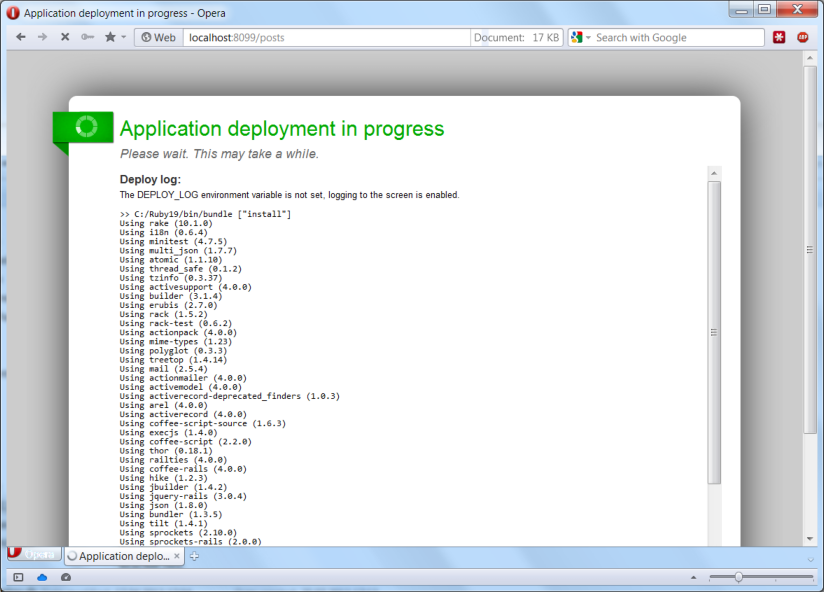
In Python project template there is already deploy.py file. You may have noticed it’s execution on the first application start. During this first execution this deploy script checks for presence of virtualenv in the folder and configures a new virtualenv if no existing found. Additionally this file contains common deployment instructions for database migrations, modules installation using requirements.txt file, etc. So if you exclude /venv/ folder when uploading your application to the production server, it will be recreated during next deployment process and all requirements will be installed.
To initiate deployment process you will only need to rename the deploy_done.py file into deploy.py and push it to server. You may want to make it your last change to the project when you upload changes so to make sure all other scripts and files has been updated before deployment process initiates. If the WATCH_FILE_CHANGES_MASK environment variable is not set, Python will not load updated code files unless restarted, so initiating deployment process will do all things synchronously – migrate database, install requirements and then load new code into engines. This is so-called “cold application maintenance” which is needed sometimes because if other user requests (with either new or old code) will be running while database migrations and other deployment tasks are executed the data could be corrupted or user could get unpredicted responses. Helicon Zoo minimizes application downtime to even seconds and automates whole deployment process so it becomes easy to deploy large applications across array of servers using simple techniques.
Please read more about deployment scripts in Helicon Zoo documentation.
Performance
And now performance test for dessert. Testing machine acting as server was Core 2 Quad 2.4 GHz, 8 Gb RAM, Gigabit LAN. To generate load we used more powerful PC with Apache Benchmark. To measure Apache and Nginx performance Ubunthu 11.04 Server x64 was used. IIS 7 tests ran on Windows Server 2008 R2. No virtual machines – only bare hardware. As transport on Nginx we used the most advanced uwsgi, as well as wsgi and fast_cgi for comparison. On IIS 7 we’ve also compared with PyISAPIе.
There where two Django scripts created as testing pages. The first one outputs current time in high resolution; this is done to ensure pages are not taken from cache. The second one does the same but previously saves the result into database. It’s all done using templates in order to apply real Django infrastructure; DB used is MySQL. All settings were left default as the task was to test the most common configurations. Here are results (in requests per second):
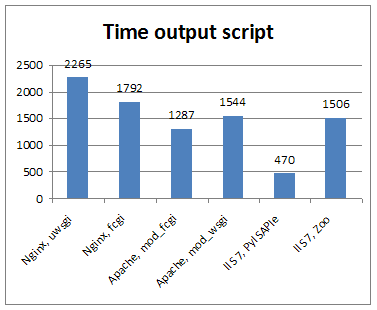
No surprises here as Python performance on Windows may be slower than Ubunthu version. Taking this into consideration Helicon Zoo transport performance should be really high. Uwsgi is ahead probably due to closer integration with Django.
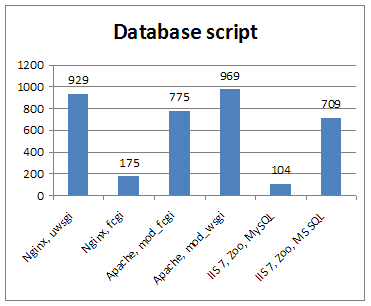
The results for the second script are not that smooth. Why Nginx + fcgi + MySQL showed only 175 requests per second remains unknown. MySQL on Windows score is also frustrating, although on shared hosting the problem might not be that critical. The thing is that performance drops due to internal MySQL locks, while the server is not even loaded for 20% while generating these 104 requests per second. It’s reasonable to assume that by increasing number of sites on the server and consequently the number of DBs, if they do not interlock with each other, the total server performance will be acceptable.
Thus we decided to add MS SQL Express into the tests. The result was easy to explain with Python and its database driver being the bottleneck, though in general the picture is quite promising. Unfortunately PyISAPIe was unable to work with MS SQL Express and was excluded from tests.
It is worth to mention the ability of IIS 7 to handle great number of connections. IIS 7 + Helicon Zoo easily held thousands of concurrent connections, we simply didn’t have testing powers to generate enough connections to trigger any problems in this test. Ubuntu with default settings started throwing connection failures when the number of connections increased. Moreover, Apache appeared to be greedy for memory. During the test with the number of connections going up Apache swallowed about 3 GB in 20 seconds.
Great article, very informative. I’d love to know the performance difference between running through IIS7 and Apache but both on a Windows box.
Apache on Windows will spawn a process for every single request, thus I’m sure performance will not be impressive. We will run tests for both Apache and Nginx on Windows and update article soon.
Helicon Zoo module for IIS express finished instalation with error code 2739. (Windows 7 Pro x64)
Please send your error report to our support service at [email protected]
Thank you!
What if your Django app includes django-filebrowser and needs the Python Imaging Library and its dependencies?
Python Imaging Library is included in our feed. You can install it separately or as a part of Python Hosting Package (inside packages). DjangoBB which is also included in Zoo for example needs PIL, so you can use it as an example application.
This was precisely the answers I’d been searching for. Amazing blog. Incredibly inspirational! Your posts are so helpful and detailed. The links you feature are also very useful too. Thanks a lot 🙂
Is it possible to install this on a server that doesn’t have Internet access?
This is not possible. Helicon Zoo is provided to customers as free online service. You may temporarily connect your computer to the Internet to complete installation process.
nice posted,i like it.