This is a very simple step by step guide to install Redmine on Windows server in production. This guide is applicable to IIS 7+ based servers, which include Windows Server 2008, 2008 R2, Windows 2012, Windows Vista and Windows 7. Latter two are not intended to be used for production solutions. Please follow these steps:
1. Download Microsoft Web Platform Installer, and install it.
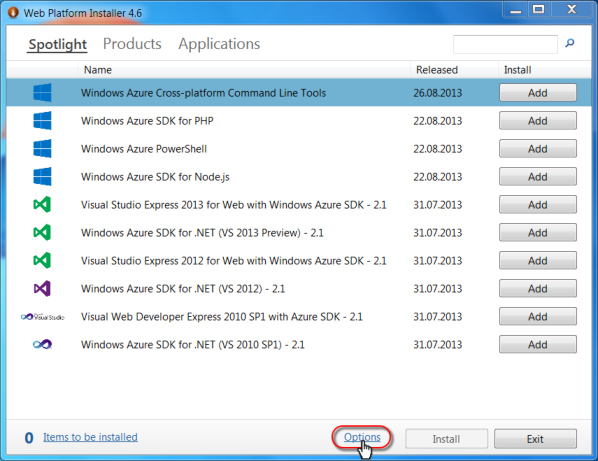
2. Run Web Platform Installer and click “Options”.
3. Add Helicon Zoo feed into “Custom feeds” field: http://www.helicontech.com/zoo/feed.xml Select “IIS” as a target web server for production or “IIS Express” for testing.
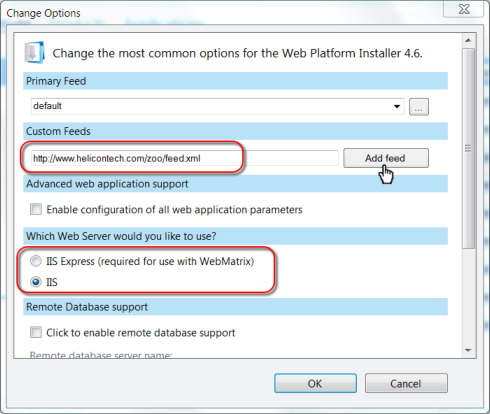
A new tab named “Zoo” should appear on the main page of Platform Installer.
4. Go to Zoo → Applications and add Redmine, then click install.
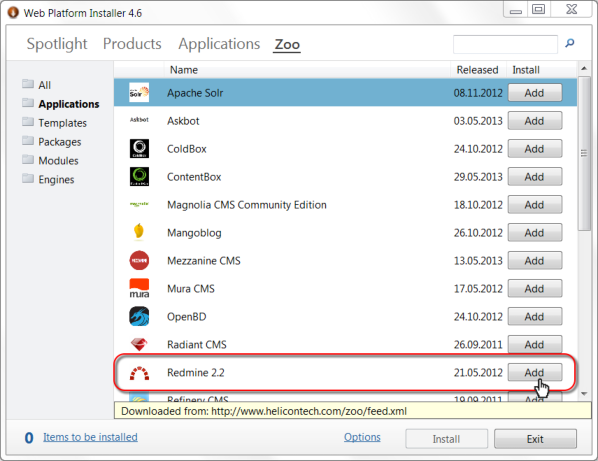
This will automatically download and install all required components, including Ruby, Rails, Helicon Zoo Module and Redmine itself.
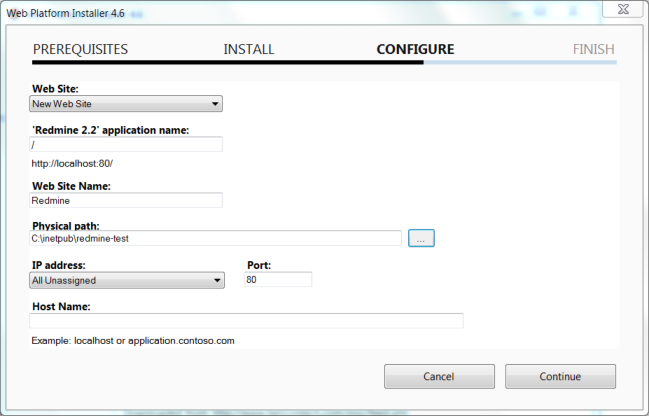
5. Setup new web-site dialog will appear. Fill it with your server specific values.
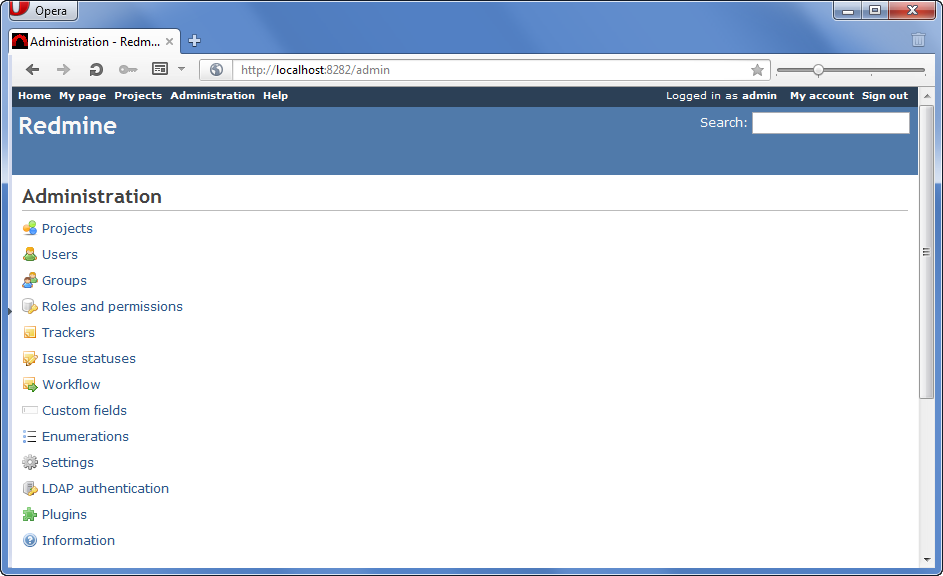
6. Go to the /admin/ folder on this web-site. Use login “admin” and password “admin” to enter Redmine Administration panel.
When you install Redmine into a sub-directory additional configuration is required. Please open config/environment.rb file and add the following line at the bottom:
Redmine::Utils::relative_url_root = ENV[ 'APPL_VIRTUAL_PATH' ]
See http://www.redmine.org/projects/redmine/wiki/HowTo_Install_Redmine_in_a_sub-URI for more information.
Custom database
Redmine supports multiple database engines. By default SQLite is installed, however there are example configuration files for MySQL and PostgreSQL within “config” folder of Redmine application. If you wish to use MySQL, for an instance, take “database.yml.mysql” file; name it as “database.yml” and alter according to your MySQL database settings. If you have already run deployment script, then you need it run it again after database change. Rename deploy_done.rb file in the root web site folder to deploy.rb and request some page. Deployment process will be initiated and database migration tasks will be executed.
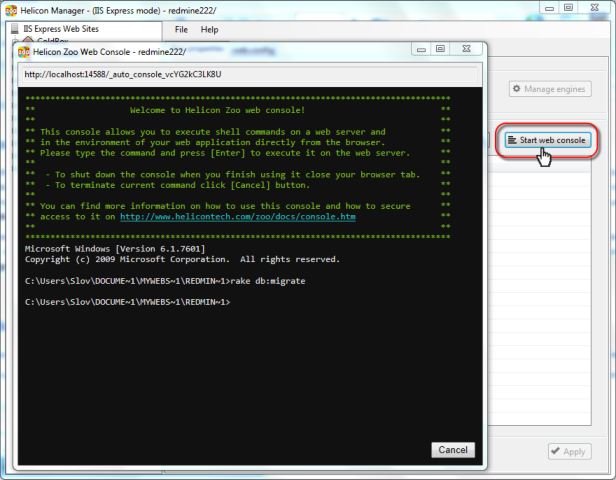
Sometimes you may need to manually execute tasks against Ruby application. Use Helicon Zoo web console for this purpose. To start web console go to Windows Start –> Programs –> Helicon –> Zoo –> Helicon Zoo Manager select your web site and click Start Web Console button. Then use this console to run for example “rake db:migrate” command and see it’s output in real time.
Manual installation
If you need to install some specific or modified version of Redmine here you can find manual installation instructions that you can adapt for your needs.
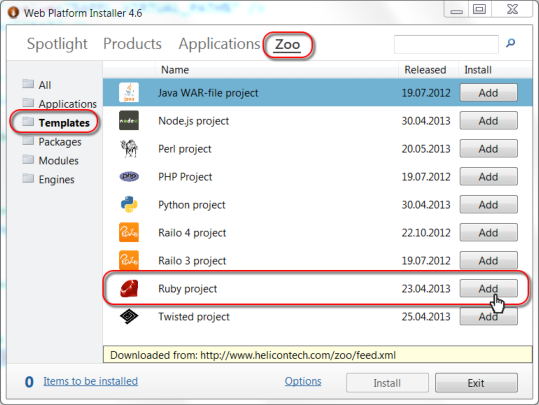
First you will need to run Web Platform Installer, go to Zoo –> Templates and install Ruby Project as you normally install application on either IIS or IIS Express.
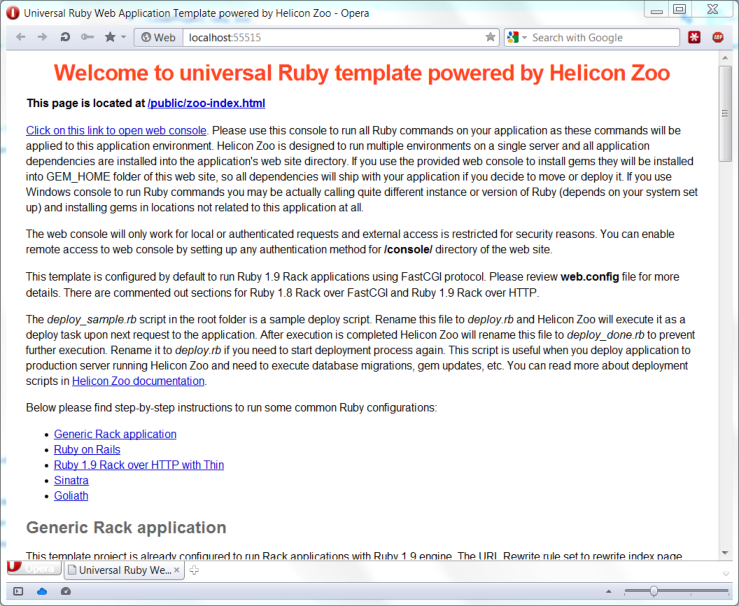
This will install generic Ruby project running with Zoo and all requirements, including Ruby, DevKit, Zoo Module, etc. After the web site is created you should see Ruby project’s welcome page:
Download Radmine package as a ZIP file here: http://rubyforge.org/frs/?group_id=1850 Unzip content of redmine-x.x.x folder from the Zip file (where config.ru file is located) directly into the web site’s (or application’s) root, i.e. config.ru file will be in the same folder with web.config file.
Now we need to set up database for use with Redmine. You can follow recommendations to create database on this official page: http://www.redmine.org/projects/redmine/wiki/RedmineInstall
The simplest way is to use SQLite as a database because it does not require any database installation. To use it you just need to create a config\database.yml file in the Redmine installation with the following content:
config\database.yml:
# SQLite version 3.x
development:
  adapter: <%= "jdbc" if defined?(JRUBY_PLATFORM) %>sqlite3
  database: db/development.sqlite3
  timeout: 5000

# Warning: The database defined as 'test' will be erased and
# re-generated from your development database when you run 'rake'.
# Do not set this db to the same as development or production.
test:
  adapter: <%= "jdbc" if defined?(JRUBY_PLATFORM) %>sqlite3
  database: db/test.sqlite3
  timeout: 5000

# Warning: The database defined as 'cucumber' will be erased and
# re-generated from your development database when you run 'rake'.
# Do not set this db to the same as development or production.
cucumber:
  adapter: <%= "jdbc" if defined?(JRUBY_PLATFORM) %>sqlite3
  database: db/cucumber.sqlite3
  timeout: 5000

production:
  adapter: <%= "jdbc" if defined?(JRUBY_PLATFORM) %>sqlite3
  database: db/production.sqlite3
  timeout: 5000
Then open Gemfile, find a line with RMagick dependency and comment it out. This is needed because current versions of RMagic does not compile on Windows platform. This gem is optional.
# Optional gem for exporting the gantt to a PNG file, not supported with jruby
platforms :mri, :mingw do
  group :rmagick do
    # RMagick 2 supports ruby 1.9
    # RMagick 1 would be fine for ruby 1.8 but Bundler does not support
    # different requirements for the same gem on different platforms
    # gem "rmagick", ">= 2.0.0"
  end
end
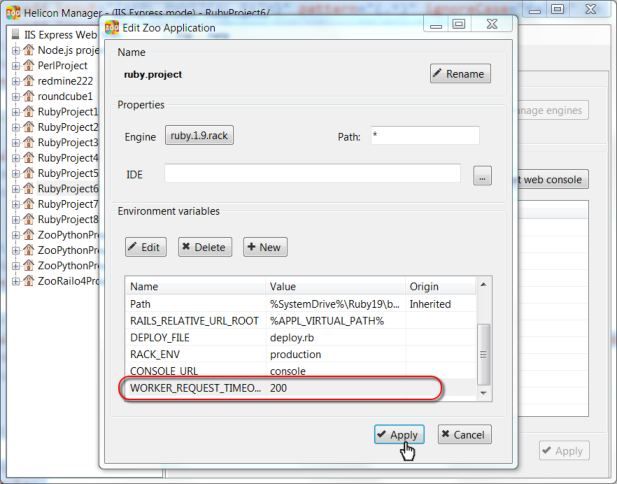
Because first Redmine start may take longer than default 30-second request timeout, open web.config file and add WORKER_REQUEST_TIMEOUT environment variable as shown below:
    <heliconZoo>
      <clear />
      <application name="ruby.project" >
        <environmentVariables>
          <add name="RAILS_RELATIVE_URL_ROOT" value="%APPL_VIRTUAL_PATH%" />

          <!-- Use this APP_WORKER with HTTP Ruby engine and Thin. Thin need to be installed. -->
          <!--
          <add name="APP_WORKER" value="GEM_HOME\bin\thin start" />
          -->
          <!--
          <add name="APP_WORKER" value="%APPL_PHYSICAL_SHORT_PATH%\app.rb" />
          -->
          <!--
          Deploy file includes the most common commands required to prepare application before launch (bundle install, migrations etc.)
          It is also possible to specify here any script which evenually will be run by rubyw.exe.
          -->
          <add name="DEPLOY_FILE" value="deploy.rb" />

          <!-- By default we run Rails in production mode -->
          <add name="RACK_ENV" value="production" />

          <!-- Web console location -->
          <!-- security rules for console are placed in /console/web.config -->
          <add name="CONSOLE_URL" value="console" />
          <add name="WORKER_REQUEST_TIMEOUT" value="200" />
        </environmentVariables>
      </application>
     </heliconZoo>
Or you can use Windows Start –> Programs –> Helicon –> Zoo –> Helicon Zoo Manager application to edit environment variables instead of editing web.config manually:
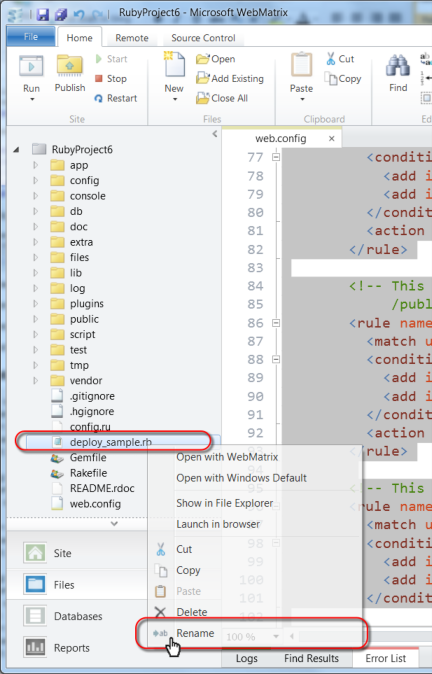
Rename deploy_sample.rb file from Zoo Ruby project template to deploy.rb:
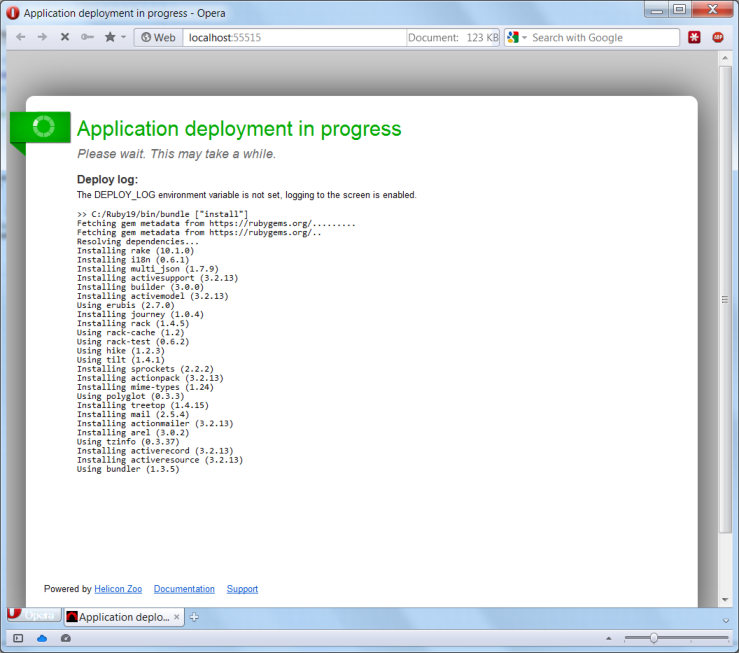
And request any page on a site – this will initiate deployment process.
After deployment is completed you should see Redmine’s home page. Then proceed with Admin section as form previous chapter.
Offline installation
Sometimes you may need to install Redmine on a machine that is not connected directly to the Internet. Here is the instruction how to prepare offline installation package that you can use to install as many copies of Redmine as you need.
First you will need another machine that is connected to the Internet to prepare Redmine on it. Please follow instructions above and install Redmine using Helicon Zoo. Make sure everything works as you need and all modules and components are installed into web site’s GEM_HOME folder. Helicon Zoo applications are self-contained – this means you can simply move application from one machine to another just by copying web site folder as long as required Zoo Hosting Package (in our case Ruby Hosting Package) is installed on this machine. So we will need to prepare offline package to install Ruby Hosting Package. Fortunately Web Platform Installer provides a command line tool to do this.
On the Internet-enabled machine open command line interface (this could be simple command line or PowerShell) and navigate to Web Platform Installer folder; this is usually C:\Program Files\Microsoft\Web Platform Installer. Then run the following command:
WebpiCmd.exe /offline /Products:RubyHostingPackage /Path:C:\ruby-offline /Feeds:http://www.helicontech.com/zoo/feed.xml
With the /offline key WebpiCmd.exe will download all possible dependencies for the selected product and save downloaded files plus special feed section required for offline installation in the c:\ruby-offline folder. After generation is completed simply copy resulting folder to the Internet-restricted machine. You don’t even need to install Web Platform Installer on this machine because generated folder already contain WebpiCmd.exe file in bin location.
So open command line on Internet-restricted machine and run this command:
WebpiCmd.exe /install /Products:RubyHostingPackage /XML:C:\ruby-offline\feeds\latest\webproductlist.xml /Feeds:C:\ruby-offline\feeds\latest\supplementalfeeds\zooproducts4.xml
This will install Ruby Hosting Package and all possible requirements to run Ruby applications on this server. After installation is completed simply create an empty IIS web site and copy content of Zoo Redmine web site from the Internet-enabled machine and run the site. Please don’t try to make offline copies of Redmine application directly from feed because these packages require Interned access to run ‘gem install’ commands and other deployment tasks. So you will need to copy working and completely tuned Redmine web site instead of trying to install fresh Redmine on Internet-restricted machine.
Thank you! This totally simplified it.
I did have to add the “Files” folder though (for the attachments). Also I wonder if there was a different way to setup/configure email notifications for Windows installations. It is always telling me to configure and restart the app.
Thank you for feedback!
I guess you’ll have more chances to get answer to the email notifications question on Redmine support forum.
Thanks, you saved my day 🙂
Does naybody know about the configuration file for useing redmine with SQL Server, if possible?
thnx in advance
lluis
Im getting the following error:
No routes matches “/redmine/admin” with {:method=>:get}
Do you have any idea why this is happening?
I have tried different settings (create a new site, or using an existing one,..) without positive result.
thank you in advance.
Hello.
When you install Redmine into a sub-URI—additional configuration is required. Please open config/environment.rb file and add the following line at the bottom:
Redmine::Utils::relative_url_root = “/redmine”
See http://www.redmine.org/projects/redmine/wiki/HowTo_Install_Redmine_in_a_sub-URI for more information.
Thank you.